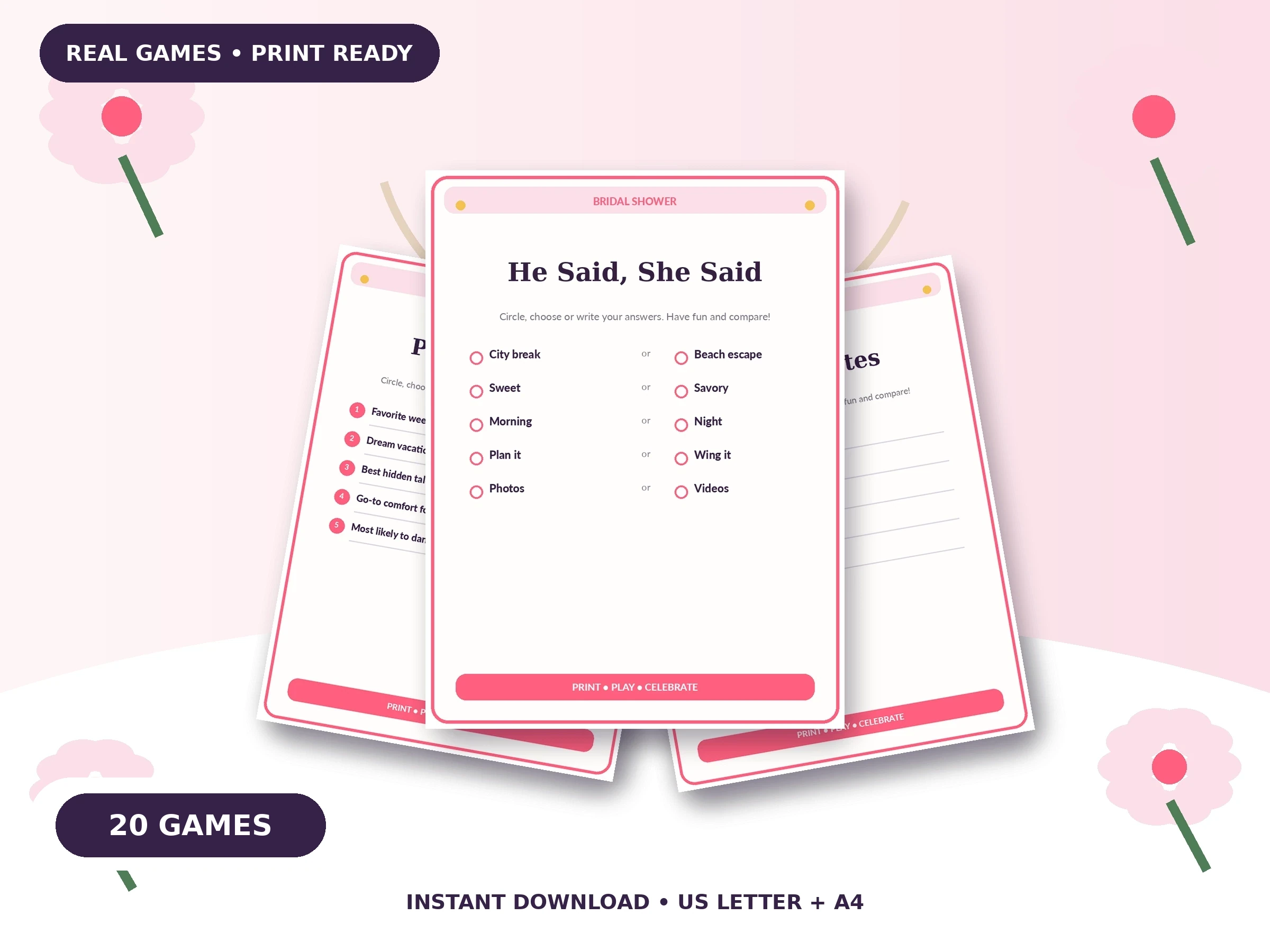
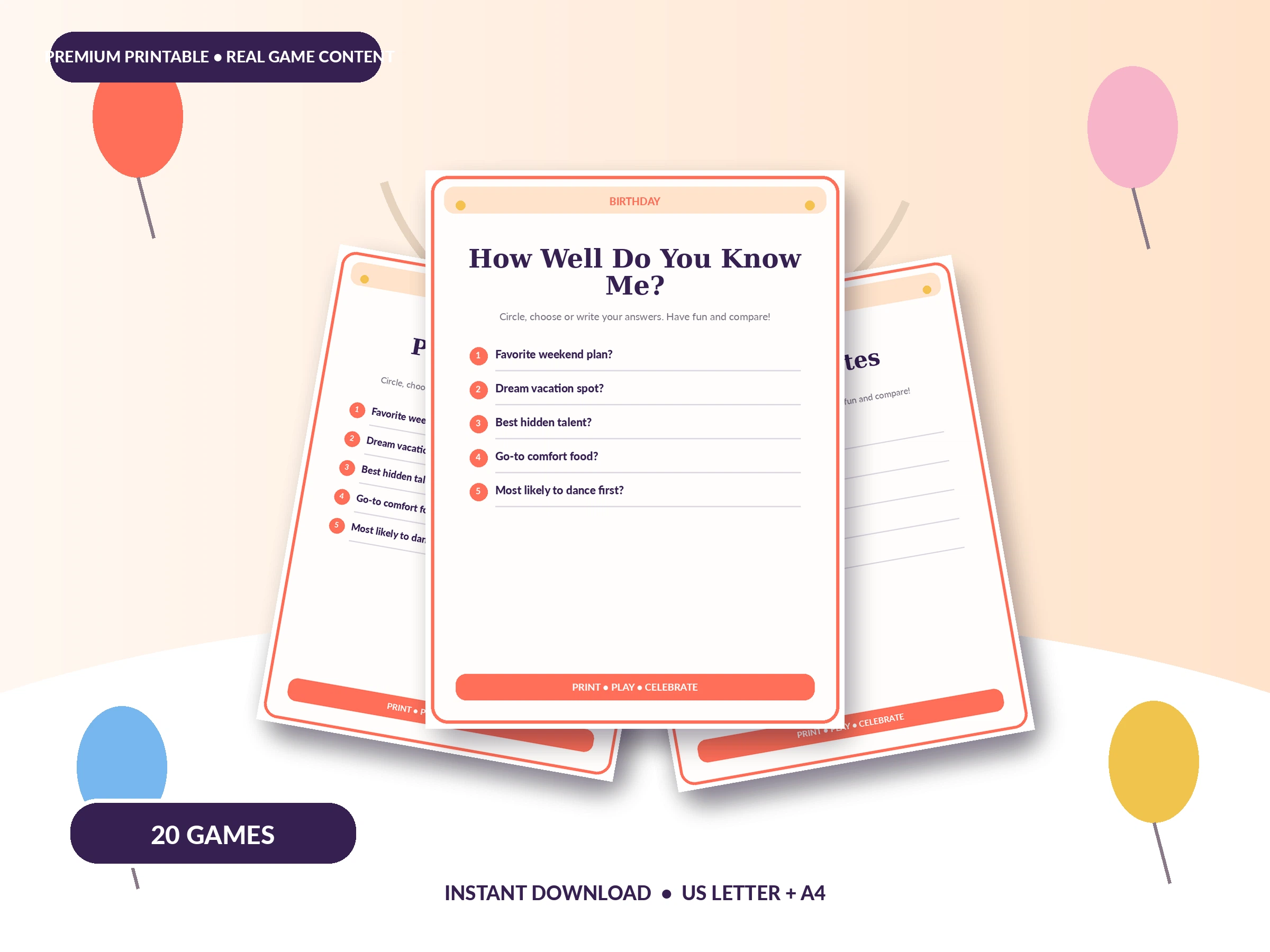
Home-printed party games can look clean and professional when the file, paper and printer settings match. Most disappointing results come from four avoidable problems: the wrong paper size, automatic scaling, low-quality print mode and paper that is too thin for the intended use.

Never print the full quantity first. Print one page, check the smallest text, margins, color and writing space, then approve the rest of the run.
1. Choose the correct file size
Use the US Letter file for 8.5 x 11 inch paper. Use the A4 file for 210 x 297 mm paper. A4 and US Letter are close, but not identical. Printing one format on the other can create cropped borders, uneven margins or reduced text.
2. Download the file before printing
Save the PDF to your computer and open it in a standard PDF reader. Browser preview windows sometimes simplify print controls or apply unexpected scaling. Keep an untouched backup copy in a clearly named folder.
3. Select Actual Size or 100 percent
Start with Actual Size or 100 percent. Turn off automatic enlargement. Use Fit only when your printer cannot handle the design’s margin, and inspect the preview before confirming.
4. Match the print quality to the page
- Draft: suitable only for checking layout.
- Normal: good for black-and-white guest sheets.
- High or Best: useful for colorful signs, keepsakes and product photos.
High quality uses more ink and time. Reserve it for pages where color and decorative details matter.
5. Select paper by purpose
| Use | Recommended paper | Why |
|---|---|---|
| Question sheets | Bright white copy paper | Affordable for one copy per guest. |
| Bingo and trivia | 24 lb or similar smooth paper | Feels better and reduces show-through. |
| Advice cards | Matte cardstock | Durable enough to keep. |
| Table signs | Heavy cardstock | Stands neatly in a holder or frame. |
| Photo props | Heavy cardstock with backing | Resists bending. |
6. Improve color without oversaturating
Choose the correct paper type in printer settings. A printer may use too much or too little ink when the paper type is wrong. Turn off aggressive photo enhancement for illustrated printables unless the test page proves it helps. Soft pink, sage and cream palettes can appear warmer on uncoated paper than on screen.
7. Prevent smudges and banding
- Run the printer’s nozzle or print-head check when lines look uneven.
- Use paper stored flat and dry.
- Let heavily colored pages rest before stacking.
- Print in smaller batches if the printer becomes hot or inconsistent.
- Check ink levels before a large run.
8. Print double-sided only when designed for it
Many home printers shift the back side slightly. Use double-sided printing only for files designed with generous margins and confirmed orientation. For game pages and answer keys, separate sheets are usually simpler.
9. Cut cards with guides, not guesswork
Use the crop marks supplied with the file. Trim the outer edges first, then divide rows and columns. A guided cutter produces cleaner repeated cards than scissors, especially for advice cards, favor tags and conversation prompts.
10. Calculate copies before using ink
For individual games, print one per guest plus three spare copies. Print answer keys once or twice. For teams, print one player sheet per team and keep one spare. For open keepsakes, estimate participation rather than printing for every guest.
11. Present the printables professionally
- Use a shallow tray for game sheets.
- Place dark pens in two or three cups to prevent crowding.
- Display one short instruction sign.
- Keep answer keys in a host folder.
- Use clips or a paperweight outdoors.
- Store completed keepsakes in a labeled box.
Troubleshooting quick guide
| Problem | Likely cause | Fix |
|---|---|---|
| Border is cut off | Wrong size or printer margin | Confirm file size, then test Fit. |
| Text looks fuzzy | Draft mode or browser preview | Download PDF and select Normal or High. |
| Colors look dull | Paper or quality setting | Select correct paper type and test High quality. |
| Ink smears | Too much ink or no drying time | Use correct paper setting and rest pages. |
| Back side is misaligned | Duplex shift | Use separate sheets or larger margins. |
A professional result comes from testing, not from owning the most expensive equipment. Match the file to the paper, print one proof and reserve premium settings for the pages guests will photograph or keep.